Forms Element
The Form element is used to collect user information, such as names, emails, feedback, or inquiries, directly from your site visitors.
In ZenBasket Builder, you can add a Form element by selecting a predefined form with fields, adjusting its layout, and modifying the existing fields as needed.
You can view all submitted form responses under the User Queries section in Store Admin.
Adding a Form to the Layout
-
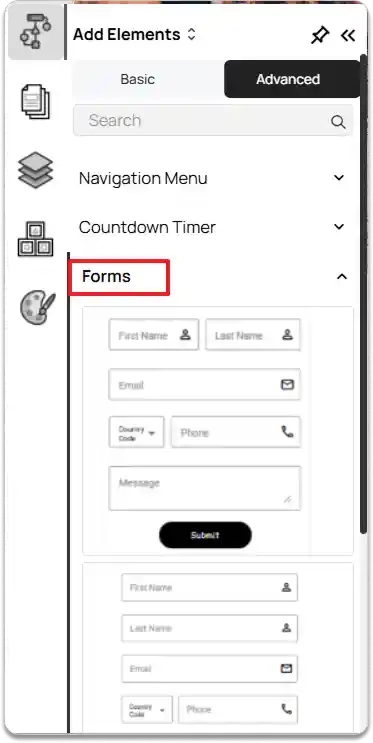
Go to the left tools panel and click on** Add Elements**.
-
Under Advanced elements, click on** Forms** and select the desired Form.
-
Drag and drop it into your preferred section or layout area.
-
Adjust its position and size as needed using the drag handles.
Customizing the Form Element
-
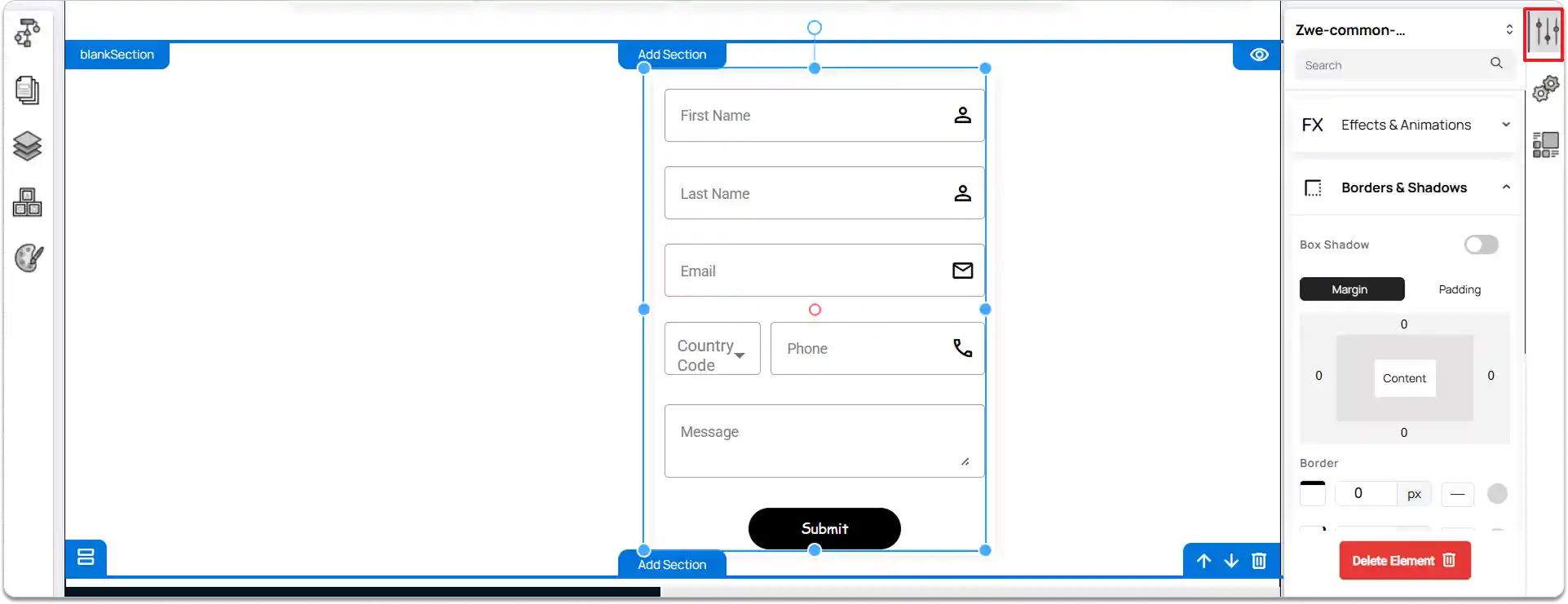
Select the Form element on your page.
-
Navigate to the right tools panel and click on the Properties option.
-
Under Effects & Animations, select an Effect and an** Animation action**.
-
Under Borders & Shadows, enable** Box Shadow** if needed and adjust its settings.
-
You can also modify the Margin and Padding as required.
To remove the form, click the Delete Element button.
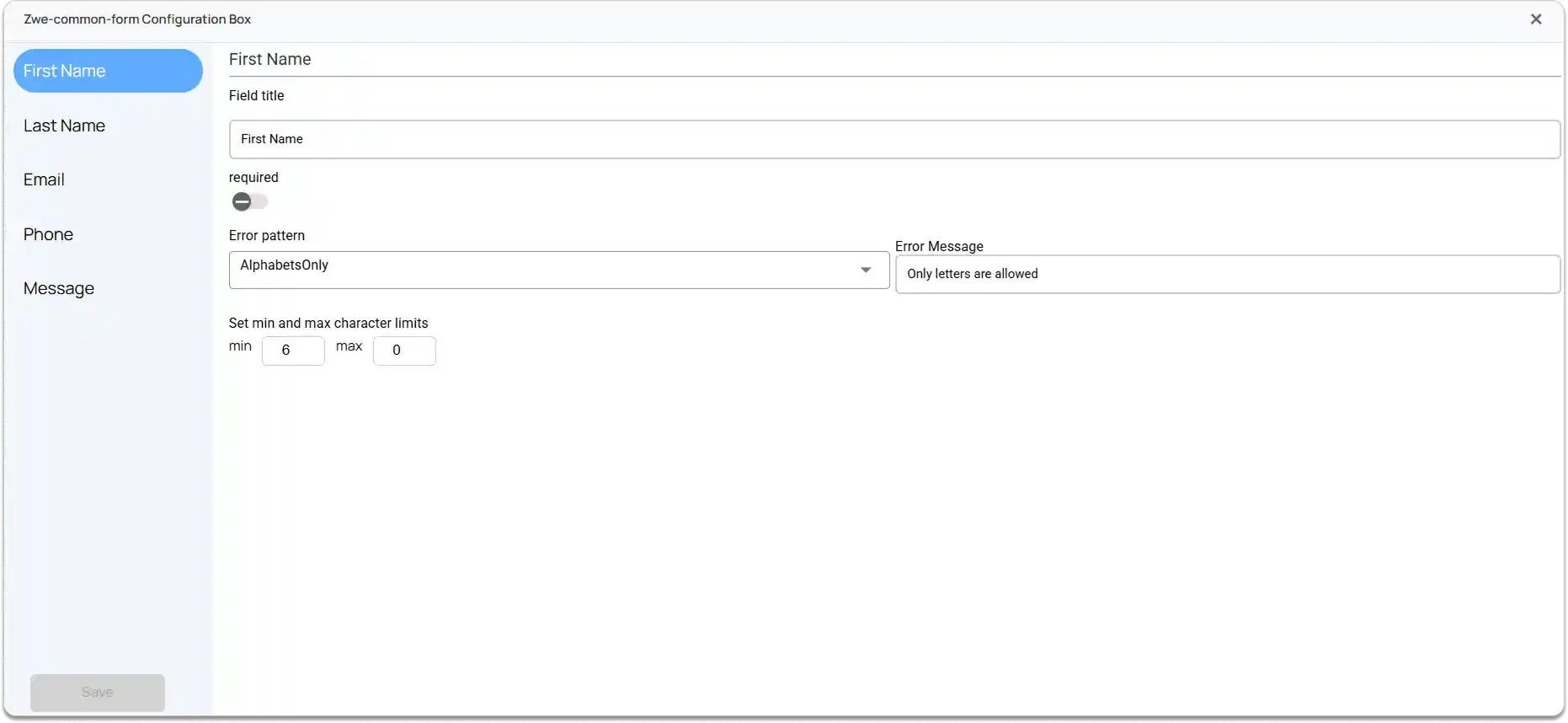
Customizing the Predefined Fields
-
Click on the Configuration option on the right tools panel.
-
A Configuration dialog box will appear.
-
On the left side of the dialog box, you can view predefined fields such as First Name, Last Name, Email, Phone, and Message, which you can customize as needed.
-
Enable or disable fields as required.
-
Set an Error Pattern and specify an Error Message for validation.
-
Define the Minimum and Maximum Character Limits for each field.
Click the Save button to apply and save your modifications.