
Box Element
The Box element is one of the most versatile and essential components in site design. It acts as a container that helps structure and organize content across your web pages.
In ZenBasket Builder, the Box element allows you to group multiple elements—such as text, images, buttons, or videos—within a single section. This makes it easier to design clean, organized, and visually balanced layouts for your website.
Adding a Box Element
-
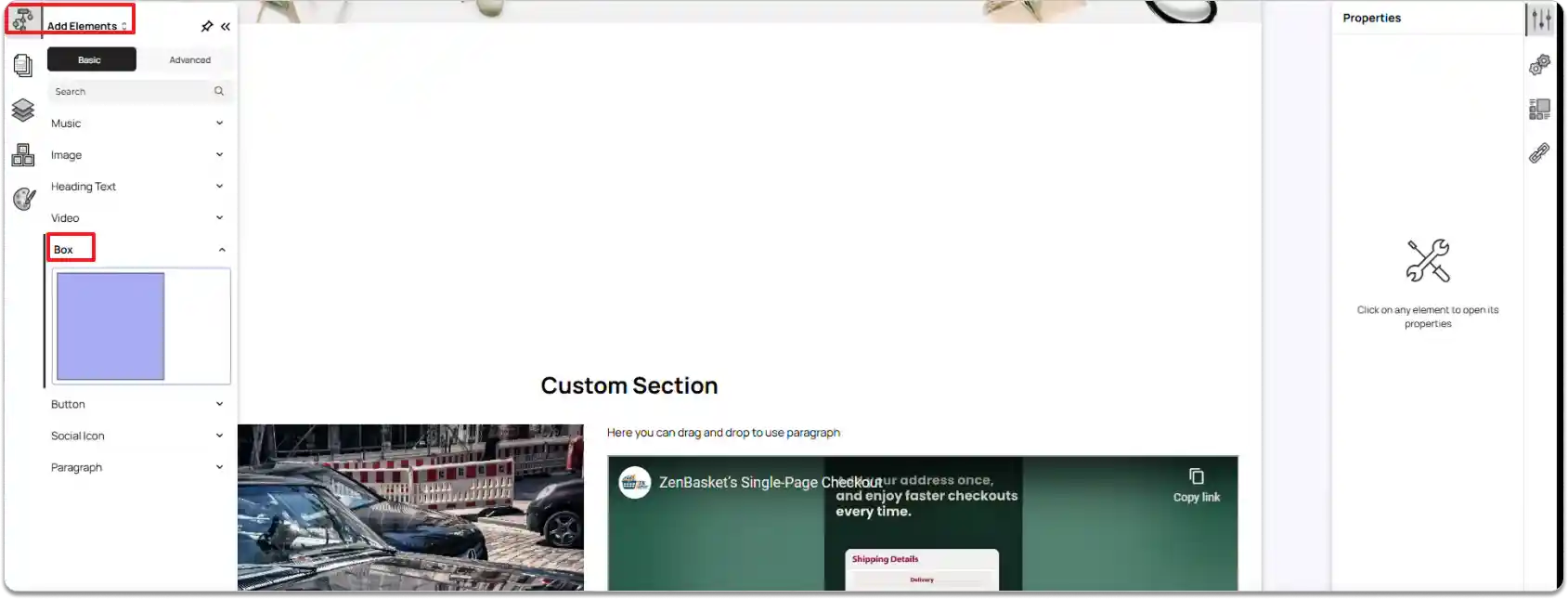
Click Add Element from the left tool panel.
-
Under Basic elements, select Box.
-
Click and drag the Box element into the section.
-
Once the Box element is added, you can:
-
Resize the box.
-
Add additional elements inside the box by dragging and placing them, using the same method as when adding the Box element.
-
Customizing the Box Element
To customize the Box element:
-
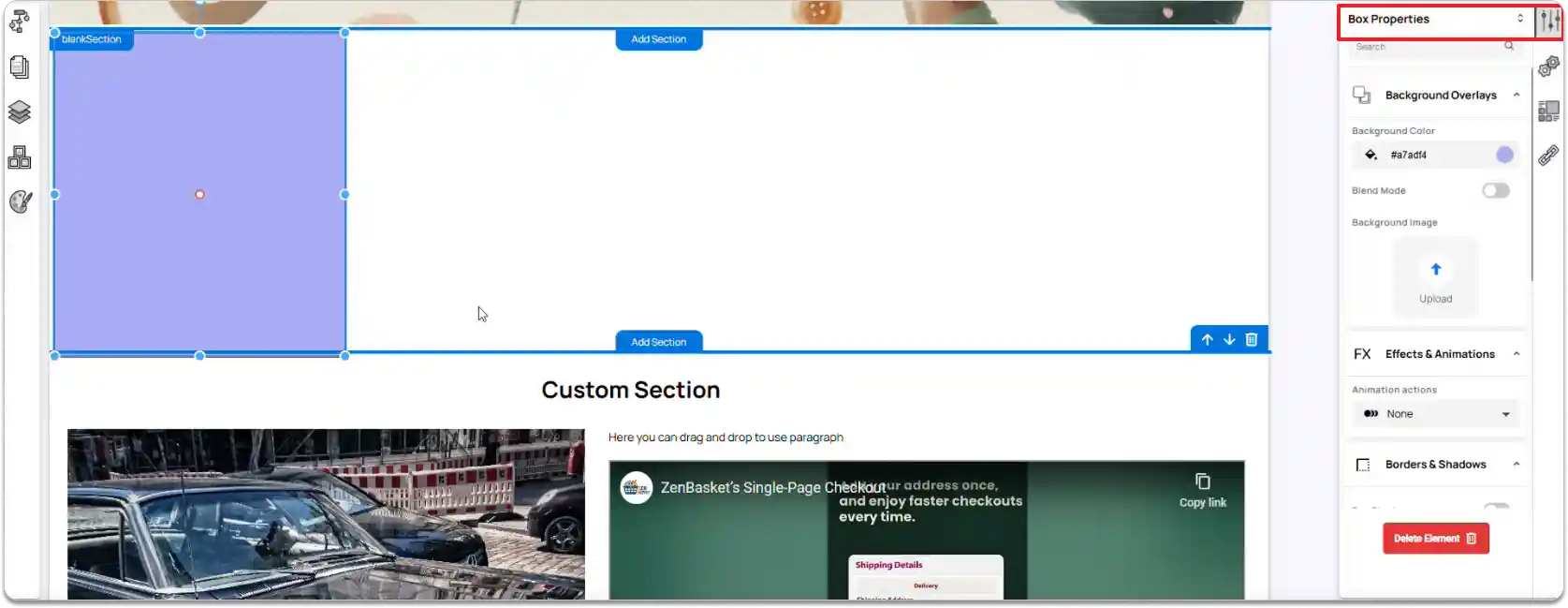
Select the Box section in the editor.
-
In the Properties panel on the right, you can configure the following options:
- Background Overlay:
▪️Set a Background Color.
▪️Enable a Blend Mode for visual effects.
▪️Add a Background Image if needed.
▪️Choose a Background Size and Background Position.
- Effects & Animations:
Apply an Animation action to make your Box visually engaging.
- Borders & Shadows:
Enable the Box Shadow if needed. Define Margin and Padding values to control the spacing around and within the Box section.
You can delete the element by clicking the Delete Element button.
Creating a Custom Sub-Section Using the Box
To add your own sub-section using the Box element:
-
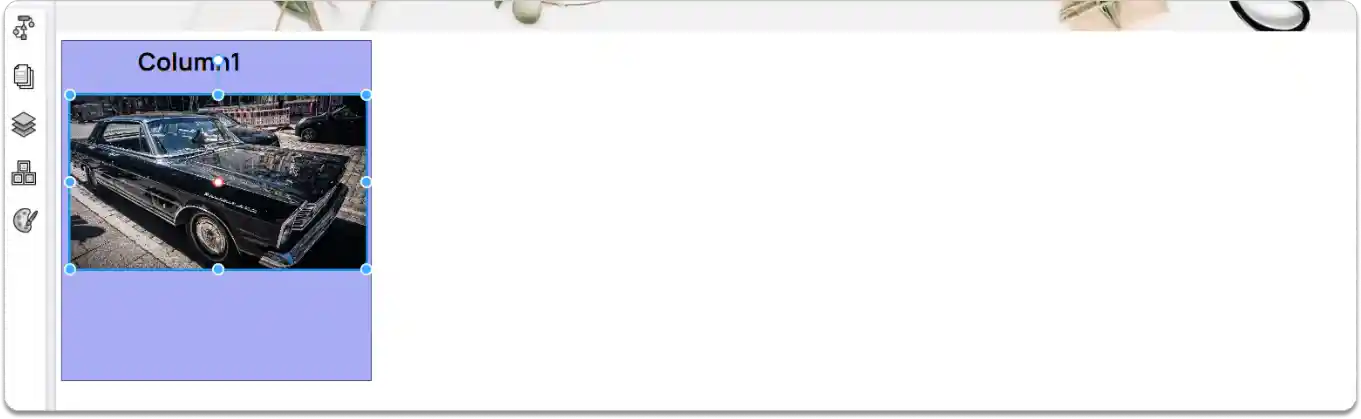
Drag and drop additional elements (like text, images, or buttons) into the Box section, just like you did when adding the Box element.
-
You can place these elements within the Box to create organized sub-sections, keeping your content structured and visually appealing.
To duplicate a sub-section inside your Box element:
- Right-click on the Box element (or the sub-section you want to copy) to open the context menu.
Click Duplicate.
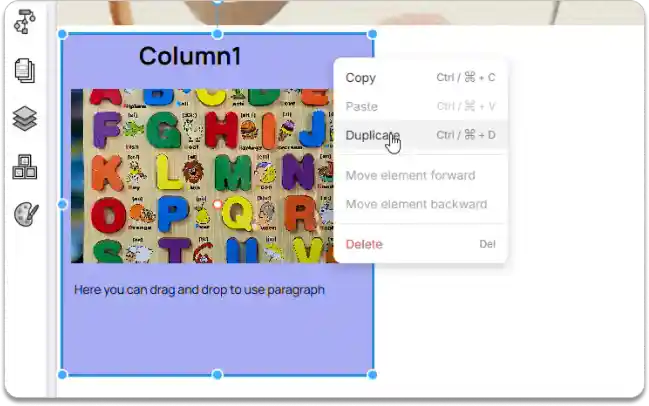
This creates an exact copy of the selected Box or sub-section, helping you quickly reuse the same design or layout without recreating it from scratch.
Using the right-click menu, you can also manage your Box element or sub-sections easily:
-
Delete: Remove the entire Box element or sub-section by selecting Delete.
-
Copy and Paste: Copy the whole sub-section and paste it into another section, or reposition it anywhere within the same section as needed.
This makes it simple to organize, duplicate, or remove content while maintaining design consistency across your site.