Button
Buttons are key interactive elements on a website that guide visitors to take specific actions like navigating pages, submitting forms, or making purchases.
In ZenBasket Builder, you can easily add buttons for various page needs, helping you create a seamless experience for your customers.
Adding a Button
-
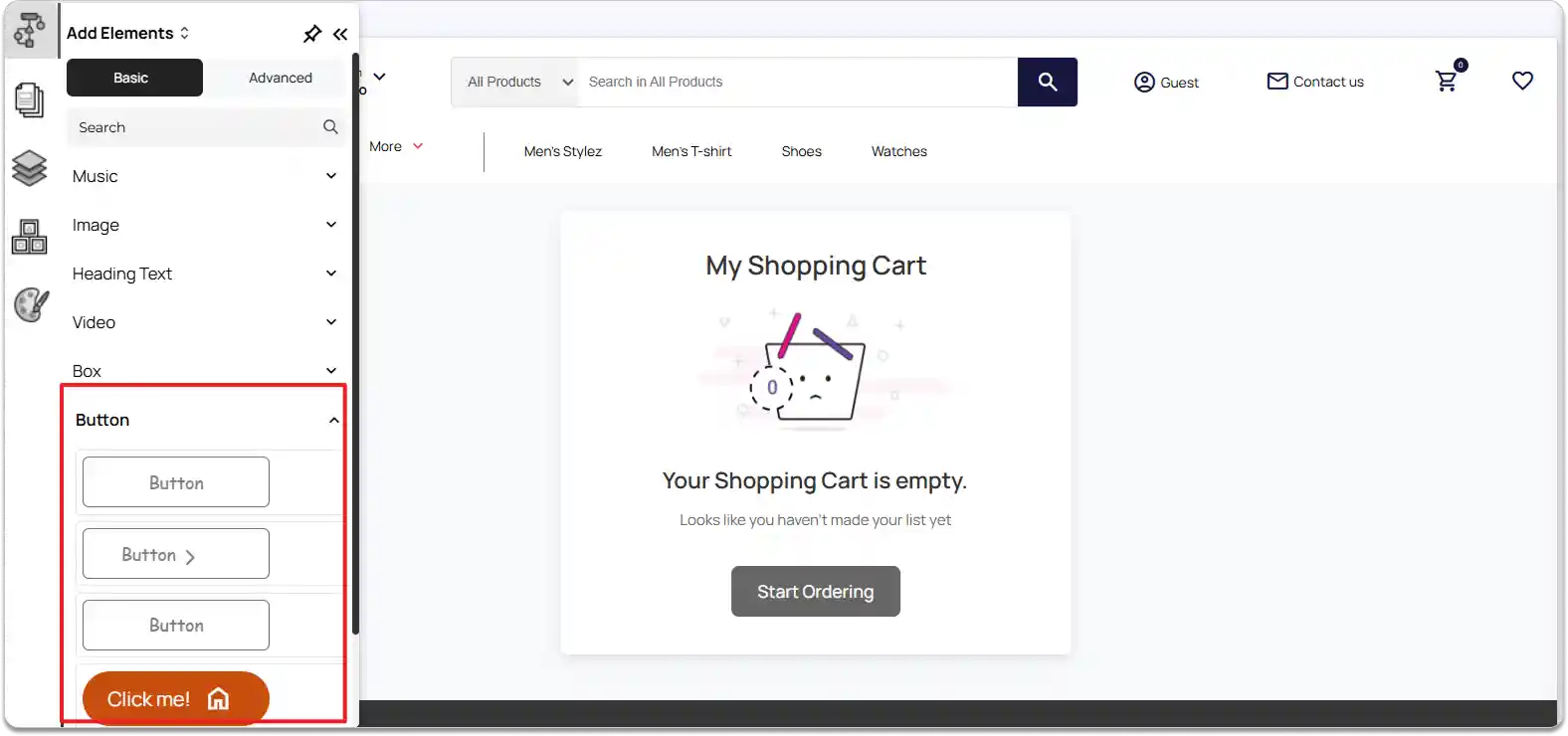
In the left panel, click Add Element.
-
Under Basic elements, select Button.
-
Choose the button style you prefer from the available options.
-
Click and drag the button to the desired position on your page.
Editing Button Text
-
To edit the text on a button, double-click the button element and enter your desired text.
-
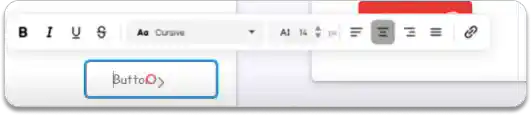
When you click the button element, a Quick Edit box will appear.
-
Use the Quick Edit options to format the text and add links as needed.
Resizing and Repositioning the Button
-
To resize the button, use the edge handles around the button element and drag to adjust its size.
-
To reposition the button, simply click and drag it to the desired location on your page.
Customizing the Button
-
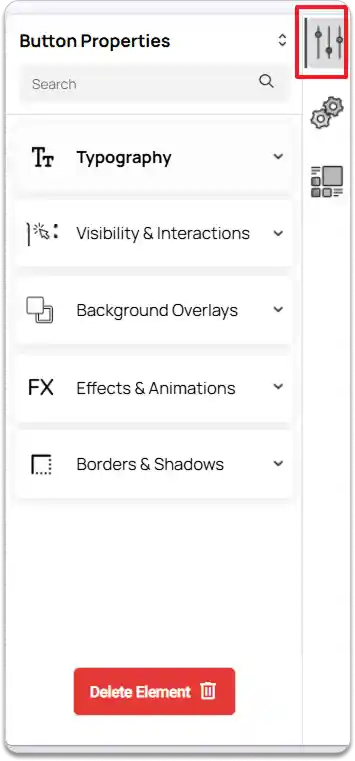
To customize a button, click the button element and go to the right tools panel.
-
Click on the Properties option.
-
Typography: Adjust the Font Family, Font Weight, Font Size, and Font Color. You can also enable Vertical Text. Enable Text Ellipse(if needed), Set value for Ellipse Lines.
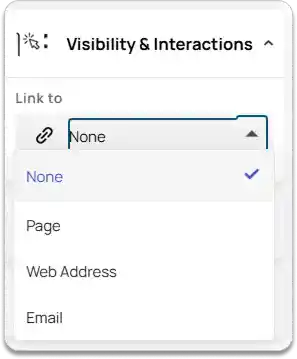
Visibility & Interactions: Add a link to the button. You can link it to a Page, Web Address, or Email.
-
Background Overlays: Change the Background Color of the button.
-
Effects & Animations: Add Effects and Animation actions to enhance interactivity.
-
Borders & Shadows: Enable Box Shadow if needed and adjust the shadow settings. You can also set Margins and Padding for the button layout.
-
To remove the button from your page, click the Delete Element button.