
Professional Courier
Professional Courier (TPC) is a leading logistics and courier service provider that offers domestic shipping solutions across multiple locations. It enables businesses to ship orders efficiently, track deliveries, and manage shipment statuses through a centralized courier system.
ZenBasket allows you to manage shipping through Professional Courier (TPC) directly from the admin panel. By enabling the Professional Courier plugin, store admins can create single or bulk shipments, track orders, print labels, and manage delivery statuses without leaving ZenBasket.
To use this feature, you must have an active Professional Courier account with valid login credentials.
How to Enable Professional Courier in ZenBasket?
-
Go to the Plugins menu.
-
From the plugin list, select Shipping Methods.
-
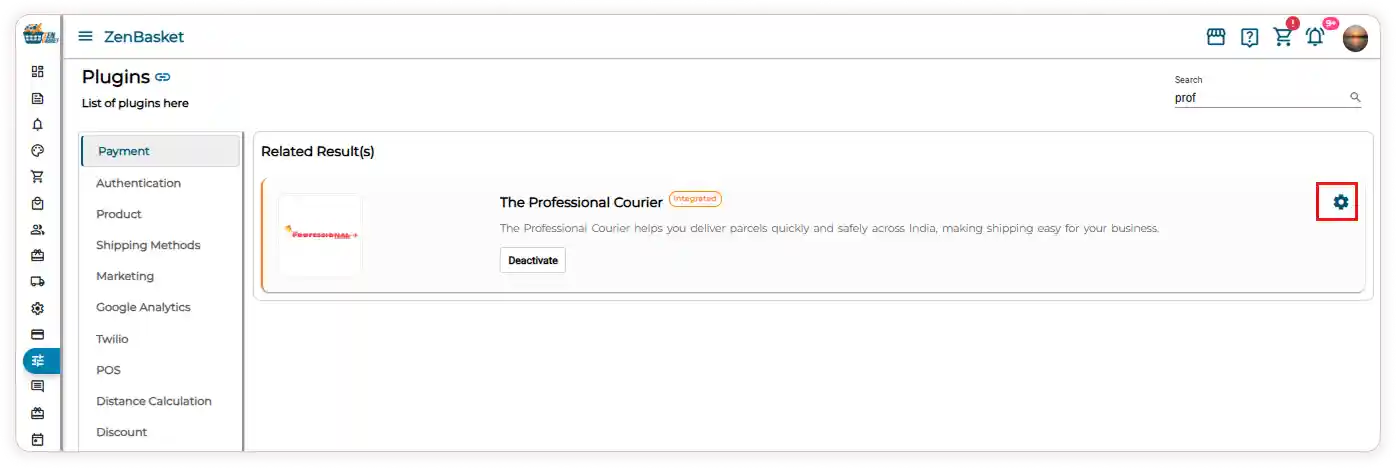
Scroll down to find the Professional Courier plugin
(or use the search bar to locate it quickly). -
Click the Activate button to enable the plugin.
-
Click the Settings icon to configure the Professional Courier setup
Professional Courier Setup
-
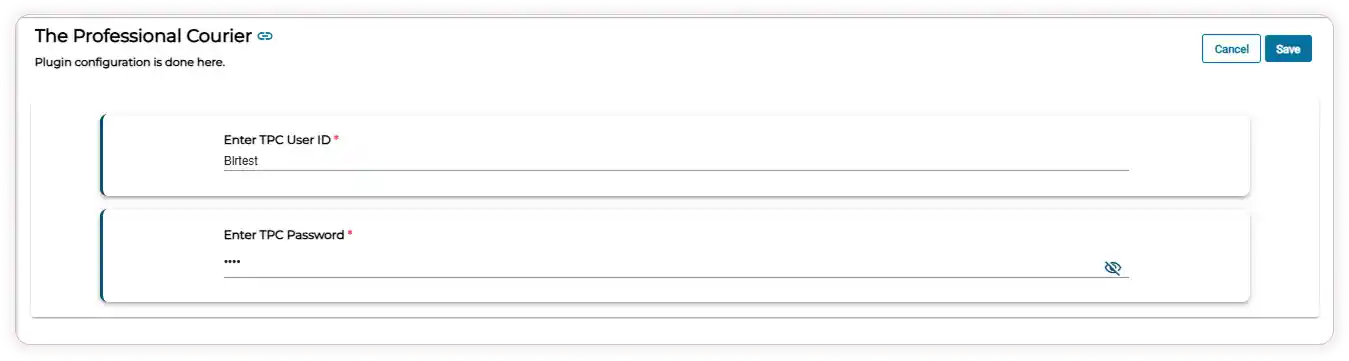
Enter your TPC User ID and TPC Password.
-
Click Save to complete the setup.
Note: You must have a valid Professional Courier account to configure this plugin.
Accessing Professional Courier Orders
-
Go to the Orders module.
-
Click on the Professional Courier menu.
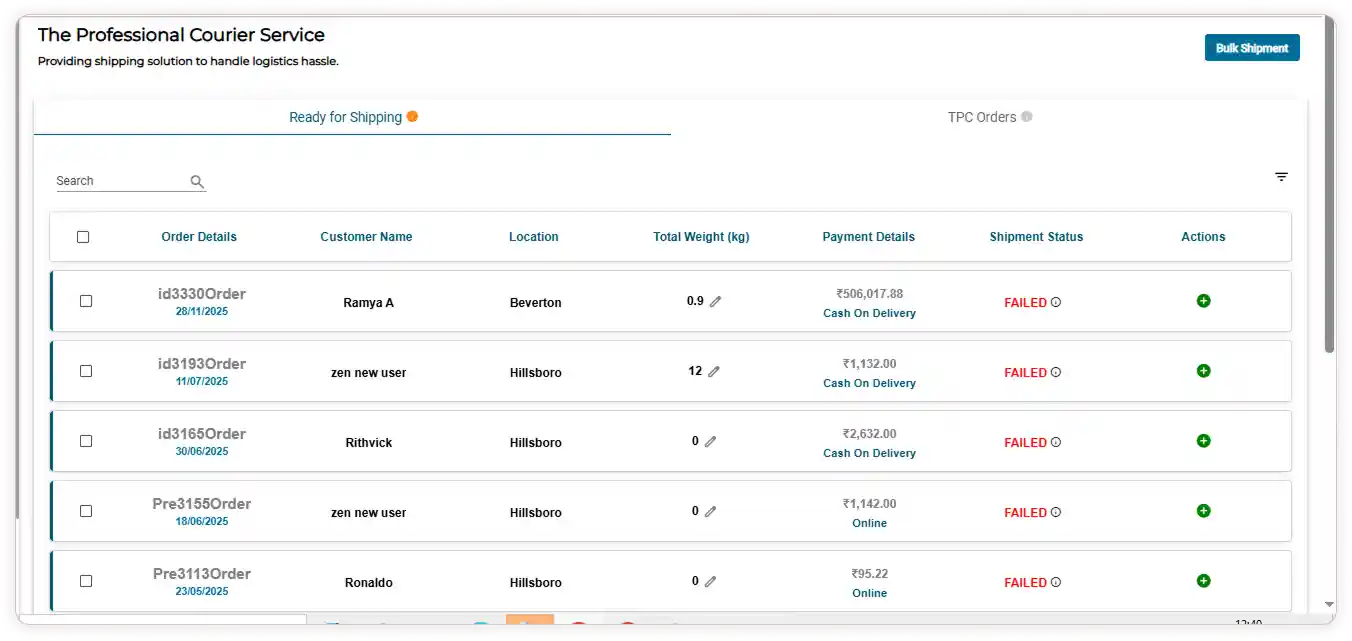
You will see two main tabs:
-
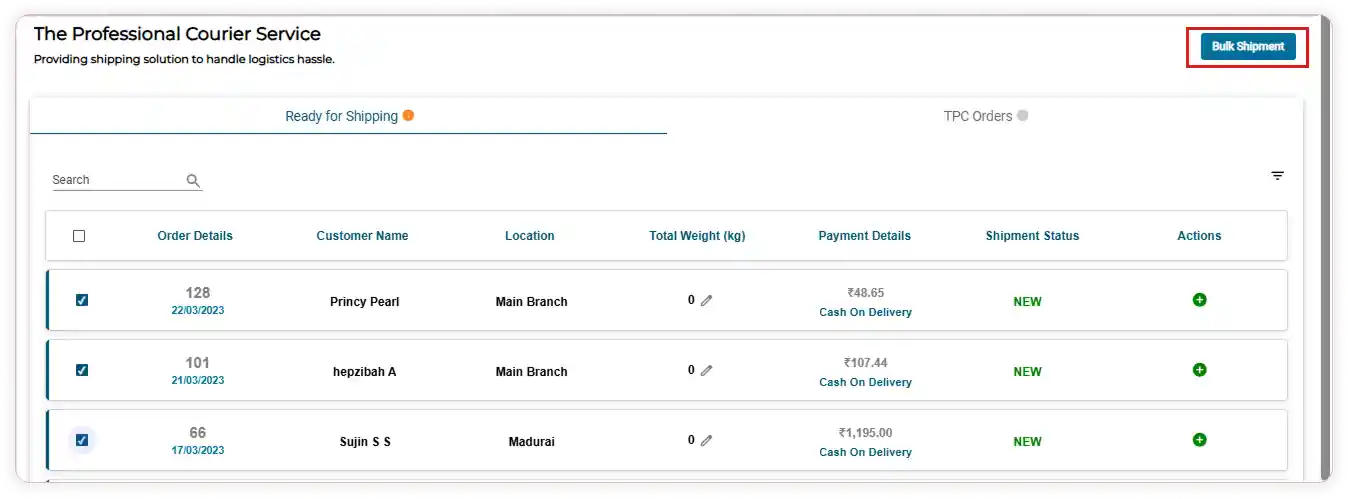
Ready for Shipping - Displays all packed orders that are ready to be shipped.
-
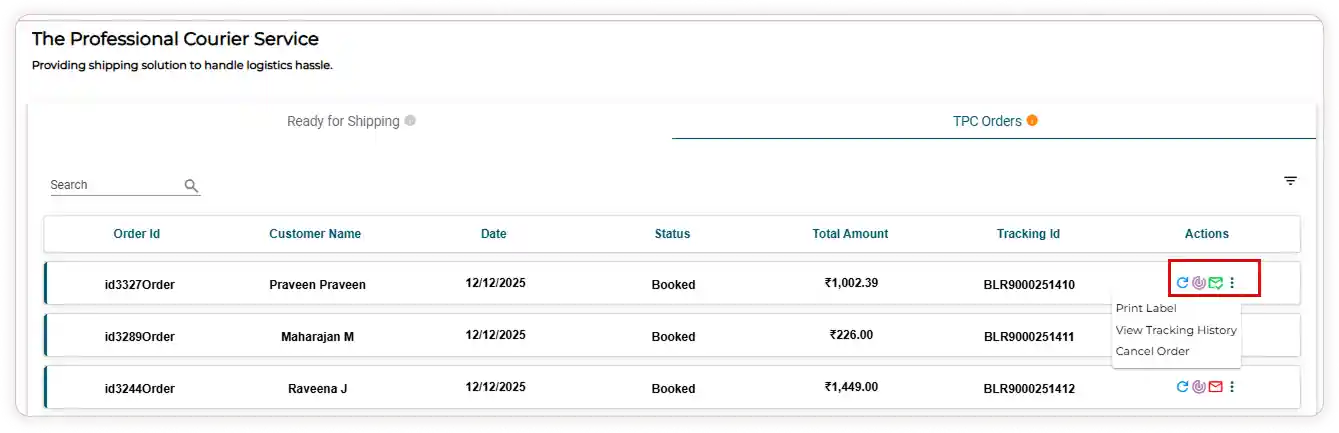
TPC Orders - Displays all processed Professional Courier orders.
Searching and Filtering Orders
-
Use the Search bar to find orders by Order ID and Customer name
-
Use the Filter icon to filter orders by Payment mode and Custom date range
How to Create a Single TPC Shipment?
-
In the Ready for Shipping tab, the following details are displayed: Order details,
Customer name, Location, Total weight (KG), Payment details, Shipment status, and
Actions -
In the Ready for Shipping tab, click the Add icon under the Actions section.
-
The system checks whether the TPC pincode is serviceable.
-
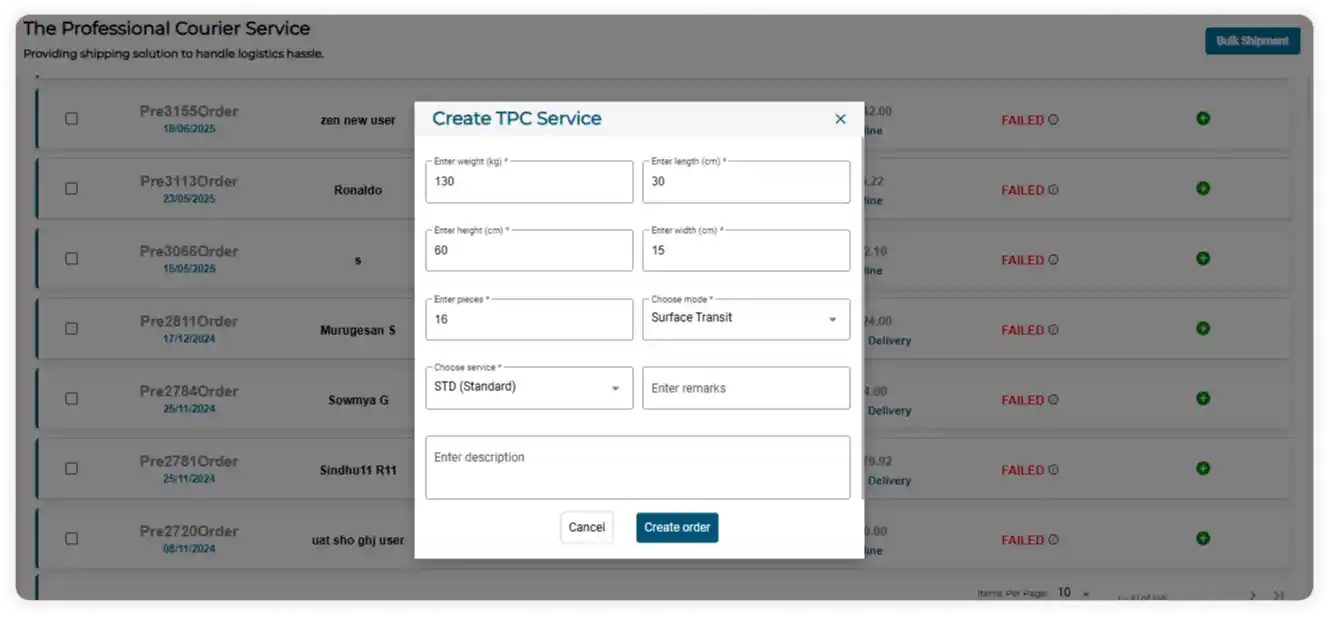
Enter the required shipment details: Weight, Length, Height, Width, Number of pieces, Mode, Service, Remarks, and Description
Note: These are Professional Courier configuration details.
-
Click Create Order to complete the shipment creation.
How to Create Bulk Shipments?
-
Select one or more orders from the Ready for Shipping list.
-
Click the Bulk Shipment button.
-
If required, edit the order weight using the Edit icon under the Total Weight column.
-
The selected orders will move to Processing status.
-
Refresh the page to view the updated order status:
-
Orders will either move to the TPC Orders tab or
-
Be marked as Failed, along with the failure reason.
-
TPC Orders Tab
-
In the TPC Orders tab, the following details are displayed: Order ID, Customer name, Date, Status, Total amount, Tracking ID, and Actions
-
Under the Actions section, you can:
-
Refresh shipment status
-
Track shipment
-
Send shipment details via email to the customer
-
-
Click More Options to:
-
Print shipping labels
(Select destination, pages, layout, color, and other print preferences before printing.) -
View Professional Courier tracking history
-
Cancel shipments
-