
About ZenBasket Builder
ZenBasket Builder is a website builder platform that allows you to build and customize your store’s layout, sections, and overall appearance, all without any coding. It offers a wide range of tools to help you design a visually refined, professional-looking storefront.
With ZenBasket Builder, you can design standalone pages even if you’re not using ZenBasket. Within ZenBasket Builder, the Theme Marketplace lists all the store themes, including both free and premium ones.
Adding Elements in the Footer
Every theme in ZenBasket Builder includes a footer on all pages, which you can fully customize to fit your design. To learn more about ZenBasket Builder footers, click here.
To add elements to your footer:
-
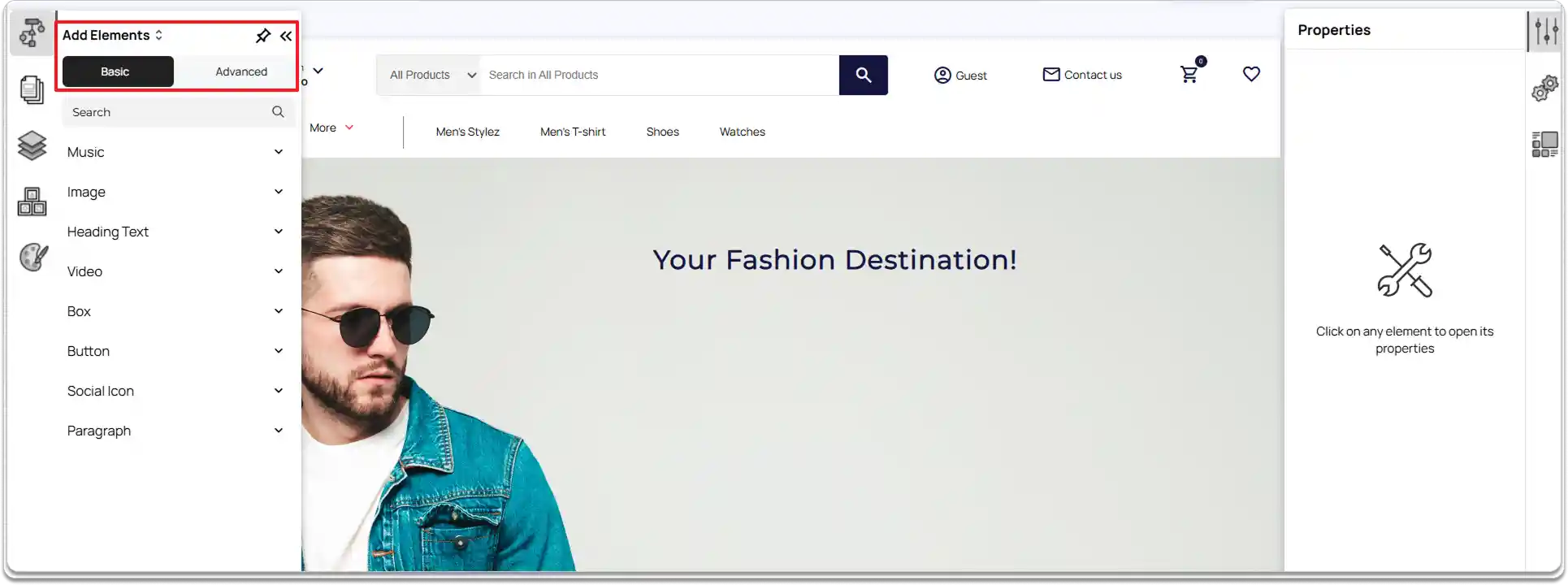
Click the Add Element icon in the left-hand panel.
-
Go through the available elements, including basic and advanced options.
-
Select the element you want and drag it into the footer section.
-
Place the element exactly where you want it.
To customize elements in the footer:
-
Click the element you want to modify in the footer.
-
Resize it using the element’s handles.
-
Drag the element to reposition it within the footer.
-
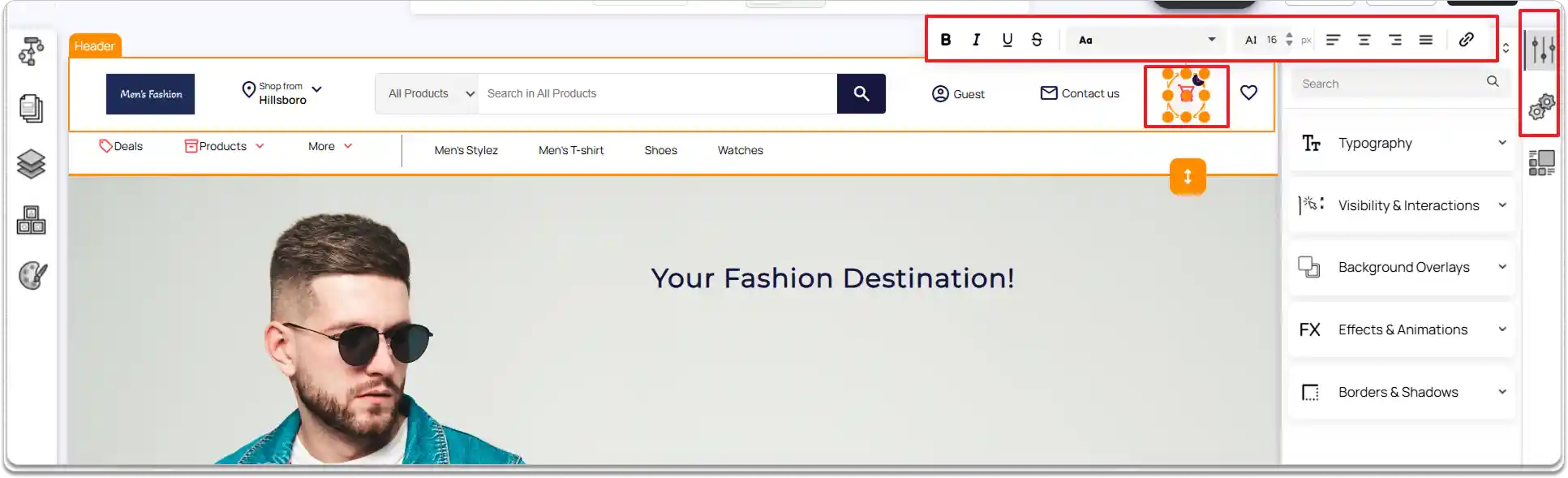
Click the element to open its editing options.
-
Use the Quick Edit toolbar above the element for fast adjustments.
-
For more advanced changes, open the Properties panel on the right side of the editor.
-
Adjust the Configuration settings to refine the footer design as needed.
Adding and Customizing Elements in Pages
Pages hold the main content and design elements of your website. Each page can have a unique set of elements based on its purpose.
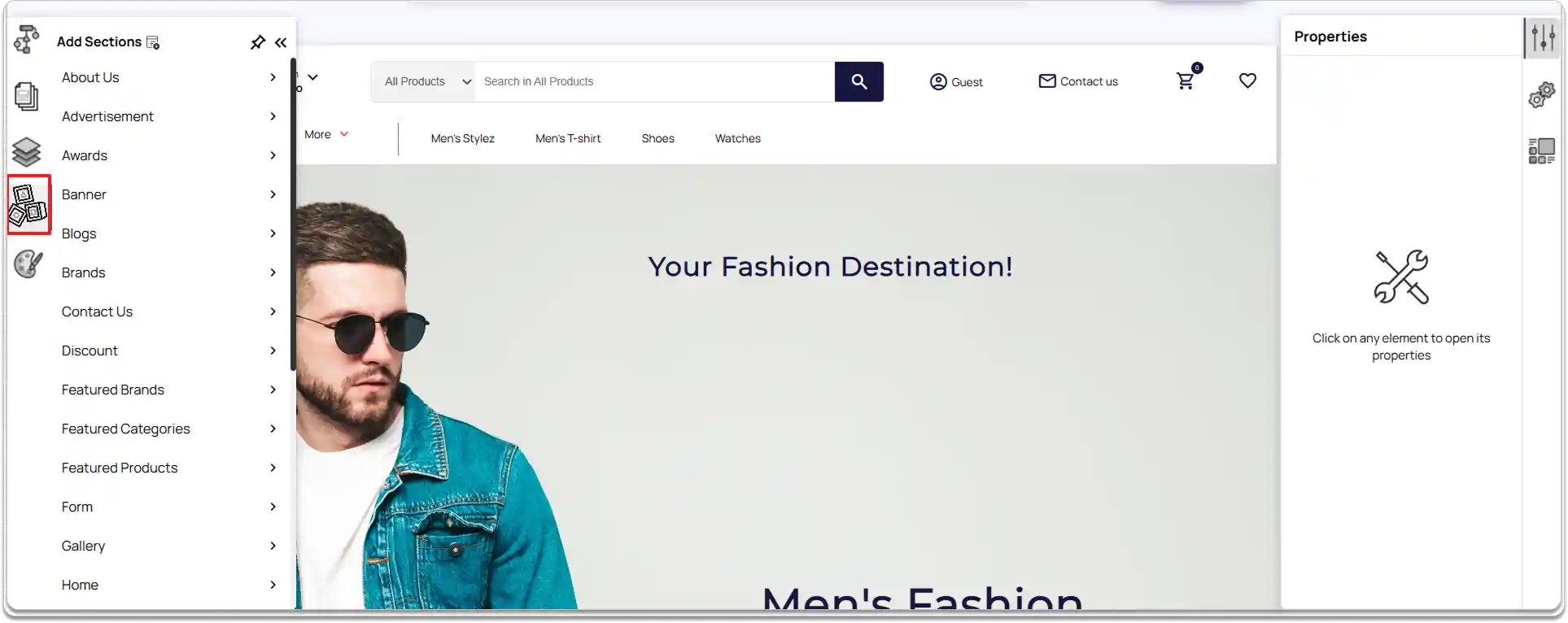
You can enhance your pages by adding sections and customizing their content. In ZenBasket Builder, use the Add Sections icon in the left-hand panel to insert pre-designed sections, or build your own sections from scratch using individual elements. The process of placing and editing elements works the same way as in the header and footer, ensuring a consistent editing experience across your site.
Other Actions for Elements
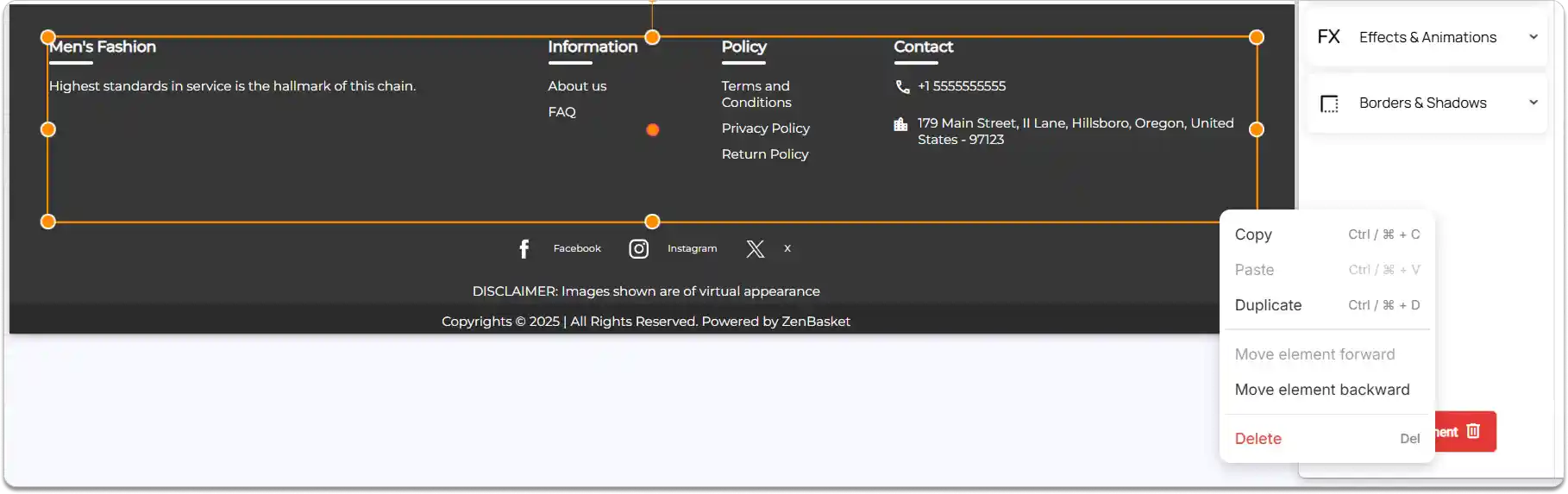
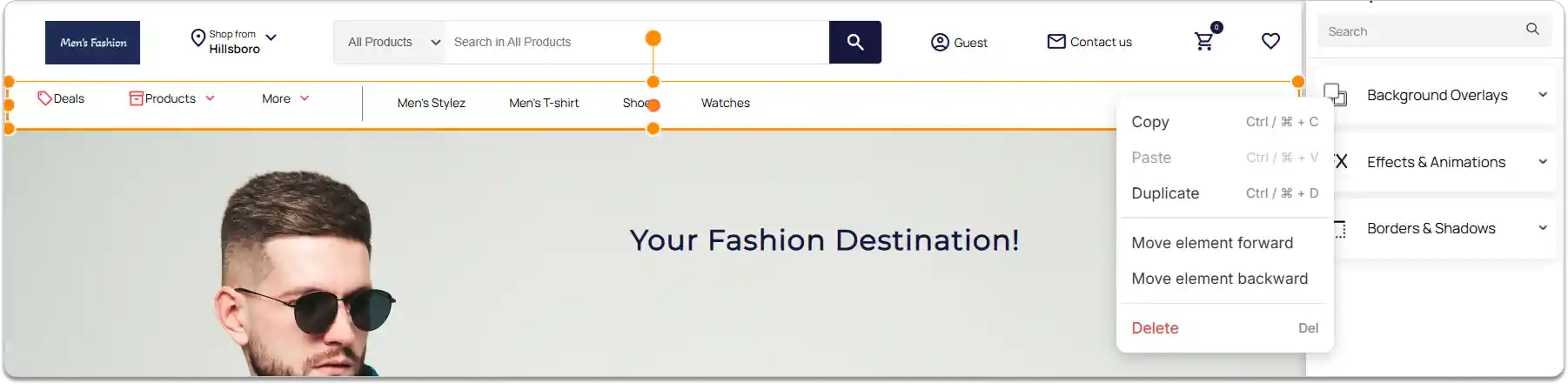
You can access common element actions for both header and footer through the Right-Click Menu:
-
Select the element you want to modify.
-
Right-click on the element to open the menu.
The following options are available:
-
Copy
-
Paste
-
Duplicate
-
Move element forward
-
Move element backward
-
Delete
FAQ
Right-click the element and select Copy. Then, go to the desired section, right-click again, and choose Paste to place the element there.