Text Element
Text is the primary way to communicate information on a website, helping users understand your content and navigate effectively. Its purpose is to convey messages clearly, enhance readability, and engage visitors.
Using ZenBasket Builder, you can effortlessly add, modify, copy, and remove text, keeping your website content up-to-date and engaging.
Adding Text
In ZenBasket Builder, you can add text using two elements -** Heading Text** and Paragraph. The Heading Text element is used to highlight titles or key sections, while the Paragraph element is ideal for adding detailed descriptions or supporting content.
To add a heading or title
-
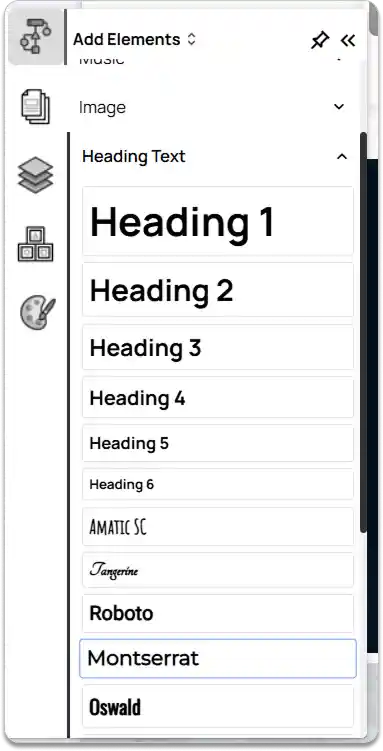
Go to the Add Element option in the left tools panel.
-
Under Basic Elements, select Heading Text.
-
Click and drag the element to your desired position on the page.
To add a paragraph
-
Go to the Add Element option in the left tools panel.
-
Under Basic Elements, select Paragraph.
-
Click and drag it to the desired position on your page.
Editing Text
To edit a text element in ZenBasket Builder:
-
Select the text element you want to edit.
-
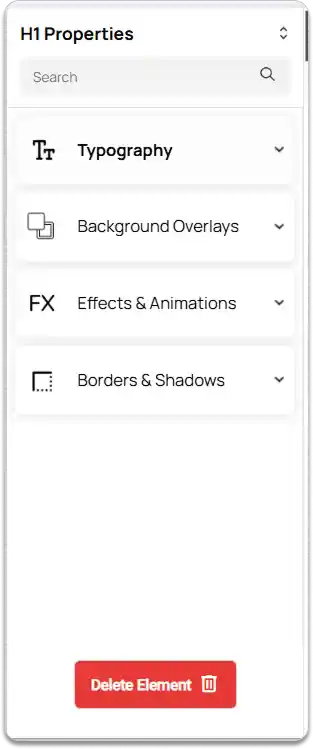
In the right tools panel, navigate to the Properties option.
-
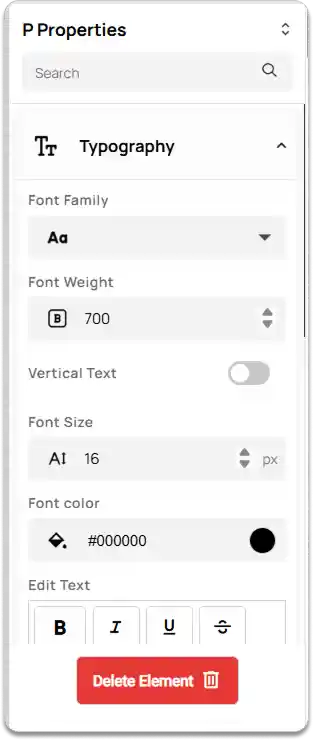
Under Typography, you can customize various text settings such as:
-
Font Family and Font Weight
-
Vertical Text (enable if needed)
-
Font Size and Font Color
-
Enable Text Ellipse(If needed)
-
Set Ellipse Lines value
-
Text Formatting – bold, italics, underline, strikethrough
-
Bullets and Numbering
-
Text Alignment
-
Add Links to make text clickable
-
Font Background Color
-
Undo/Redo changes or Clear All Formatting
-
Text Spacing adjustments
-
-
In the Background Overlays section, you can set a Background Color for your text.
-
Under Effects & Animation, you can apply effects and define animation actions for text presentation.
-
Under Borders & Shadows, you can adjust margin and padding settings to control spacing and layout.
To remove a text element, click the Delete Element button.
Quick Edit
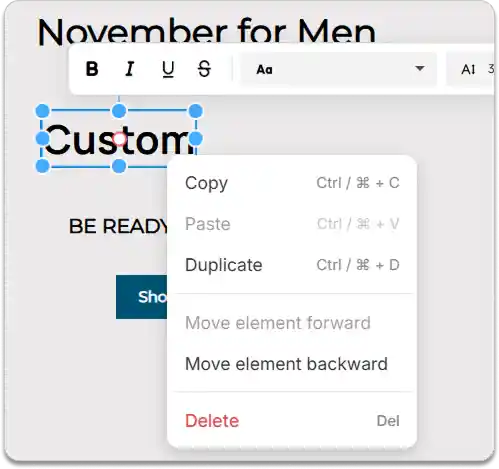
When you click on a text element, a Quick Edit panel appears just above it.
This panel allows you to make instant changes such as formatting the text (bold, italic, underline, alignment, bullets, numbering, etc.) and adding links directly, without opening the full properties panel.

Adding Links
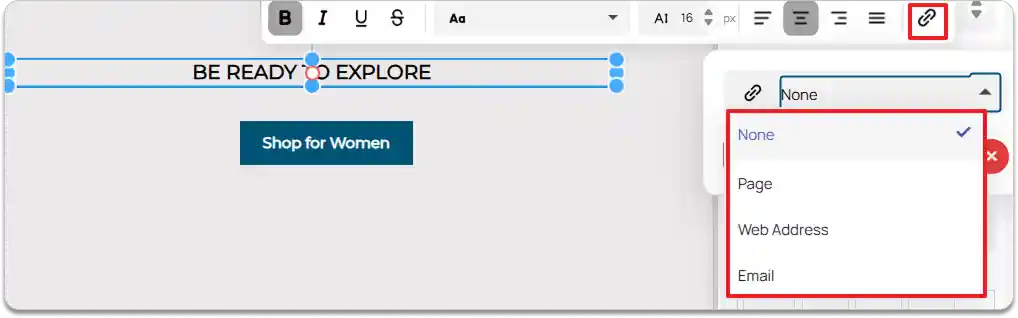
You can add links to your text in two ways — either through the Properties panel on the right or from the Quick Edit panel.
-
Select the text element you want to link.
-
In the Quick Edit toolbar, click the Link icon.
-
Choose the link type:
-
Pages – to navigate to another page on your website.
-
Web Address – to open an external URL.
-
Email – to create a clickable email link.
-
Copying Text
-
Select the text element.
-
Right-click on the element to open the Right-Click Menu.
-
Choose the Copy option.
-
Move to the desired section or area where you want to copy the text.
Right-click again and select Paste to place the copied text.