
Adding a Video as Section Background
In ZenBasket Builder, you can add a video as a section background. This feature allows you to create a more dynamic and engaging visual experience for your website visitors by playing a video behind your section’s content.
To add a background video for a sub section, first insert a Box element.
-
Click Add Element from the left tools panel.
-
Under Basic Elements, select Box.
-
Click and drag the Box element into the desired section.
-
Once the Box is added, drag and resize the Box element to stretch it to the desired width.
To add the video as the background for this section:
-
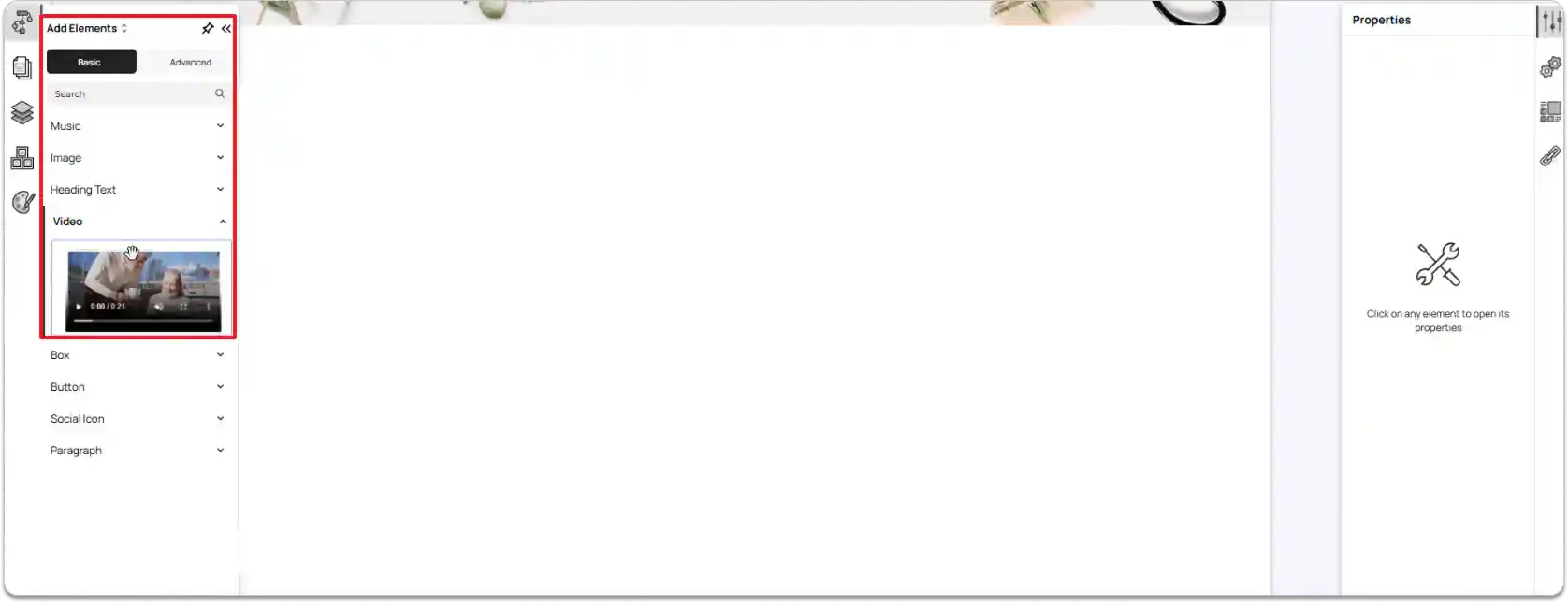
Click Add Element from the left tools panel.
-
Under Basic Elements, select Video.
-
Click and drag the Video element into the Box section.
-
Resize the video to stretch it to the full width of the Box section so that it appears as the background.
-
You can also add other elements over this video element within the same section.
-
Resize and reposition the Video element as needed to achieve the desired layout within the main section.
-
-
To add your desired video as background:
-
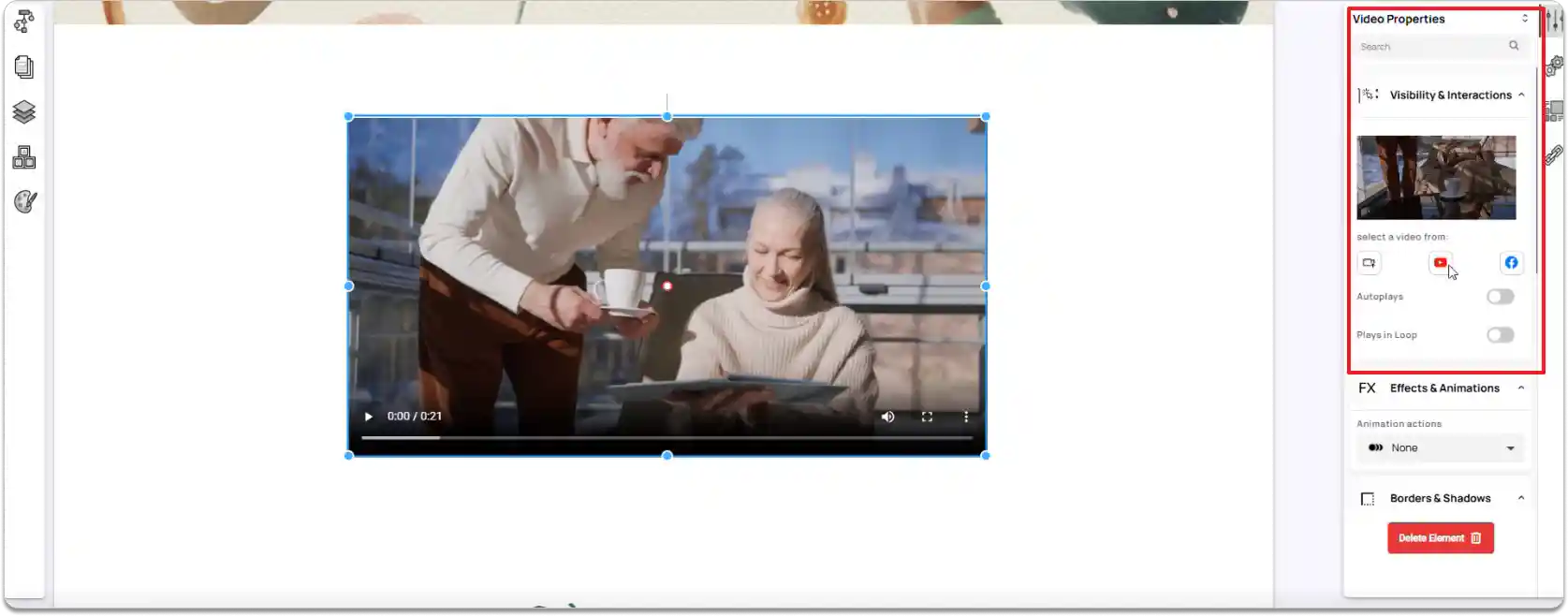
Click on the Video element to select it.
-
Navigate to the right tools panel.
-
In Video Properties, go to the Visibility and Interactions section.
-
Choose the video source: upload from your device, or select a video from YouTube or Facebook.
- Select the desired video through any of these options.
- Enable or disable Autoplay and Loop based on your preference.
-
-
Once the video is added, it will play as the section background.