Login page customization
Easily customize your Login Page to match your store’s look and feel. Adjust layouts, colors, and animations for both the welcome and login form cards. Configure every detail—from form type to button design—for a seamless user experience.
To customize the login page
-
Go to the ZenBasket Builder Editor.
-
Click on the Pages menu.
-
Select the Login page from the list of available pages.
-
The Login Page consists of the following sections:Header,Body,Footer
Note: The customization options for the Header and Footer sections are the same as those available on other pages.
Customizing the Body Section
The Body section contains two main components:
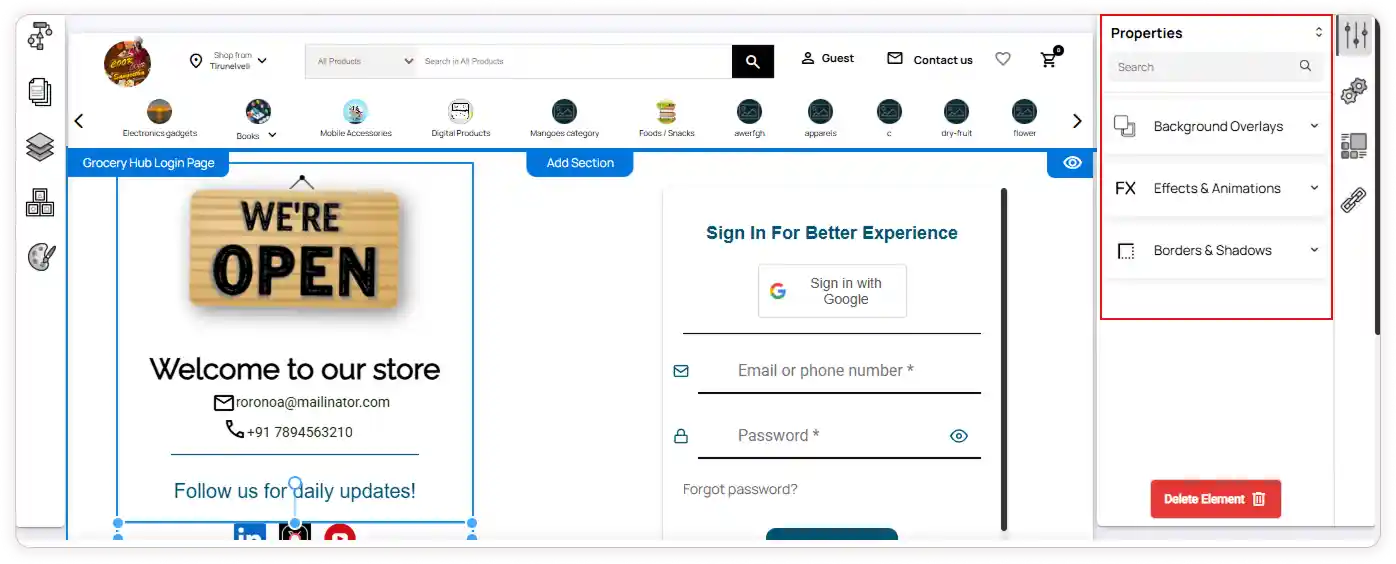
Welcome Card
-
Customize visual styles such as background overlays, effects & animations, and borders & shadows.
-
If social icon are used in the welcome card, set up the data mapping by selecting service name and api name from the dropdown options.
Login Form Card
-
Adjust borders & shadows to refine the design.
-
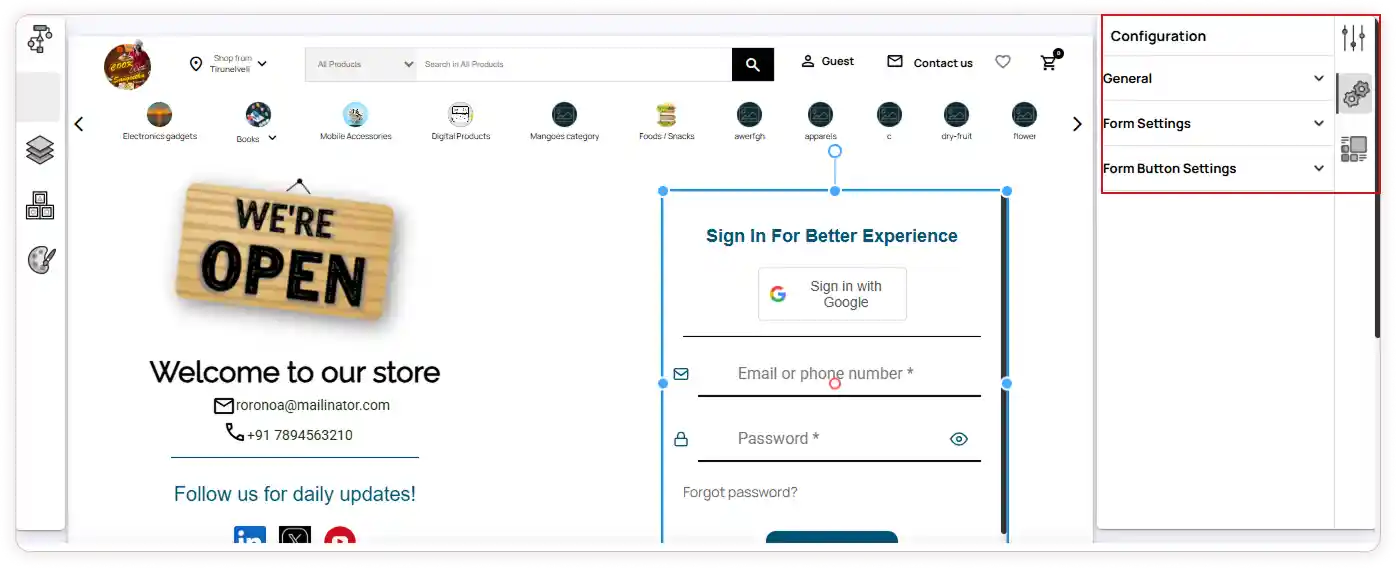
Use the Configuration settings to personalize the form.
Configuration Options
The Configuration panel includes three key tabs for customization:
-
General: Choose the form type (e.g., login, register).
- Form Settings: Set the form title, subtitle, icons, and other display preferences.
- Button Settings: Define button size, color, and font size for your form’s buttons.
Additional Actions
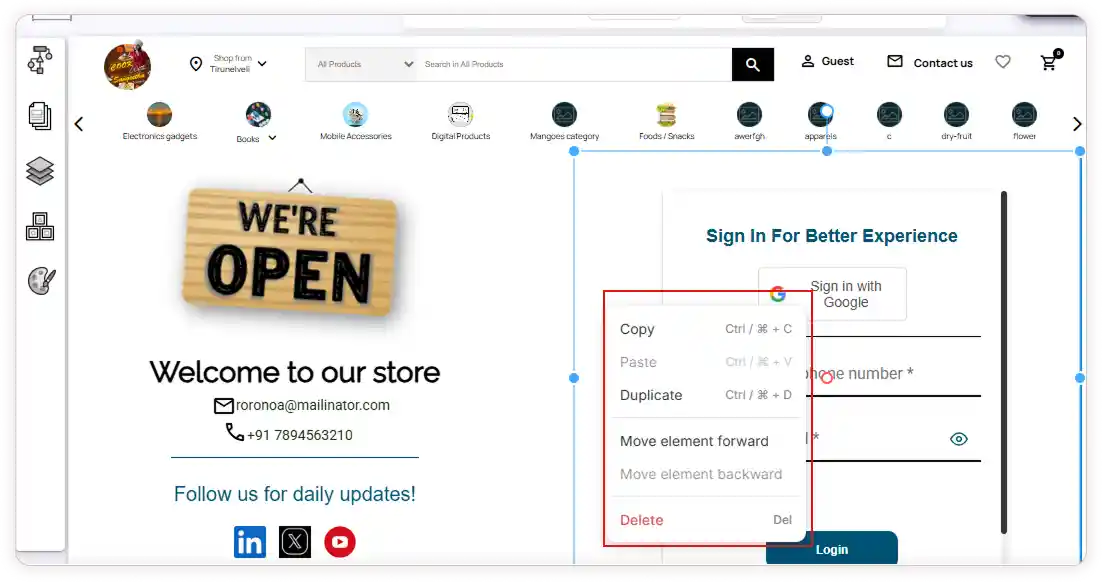
You can perform the following actions within the editor:
-
Duplicate a section
-
Delete a section
-
Move sections up or down
-
Hide/Show sections
-
Copy and Paste sections across pages