
Social Icon element
The Social Icon element. in ZenBasket Builder Editor helps you showcase your brand’s social media presence directly on your website. It allows visitors to easily connect with your social platforms, enhancing engagement and visibility. With flexible layout and design options, it seamlessly blends with your site’s style while promoting better interaction and online reach.
Adding a Social Media Icon
-
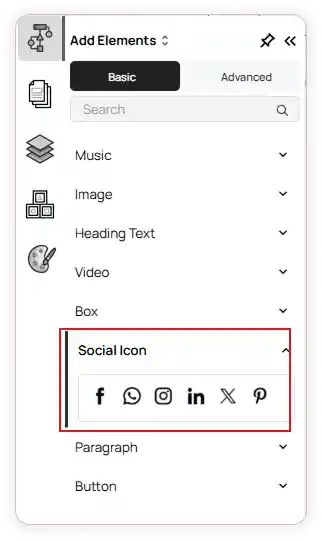
From the left panel menu, click Add element.
-
In the Basic section, select the Social Icon element.
Drag and drop the element into the desired section of your page.
Customizing the Social Media Icon
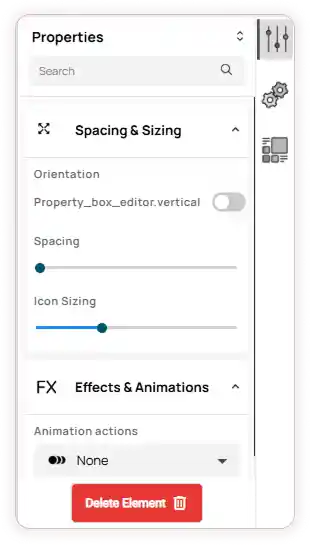
Once added, the element’s properties will appear on the right panel, where you can adjust various display and animation settings.
1. Spacing & Sizing
-
Enable or disable Vertical Icons to choose the orientation.
-
Adjust Spacing between icons to control layout appearance.
-
Modify Icon Sizing to fit your site design.
2. Effects & Animations
-
Choose Animation Actions from the dropdown to define how icons appear on your site.
-
Set animation effects, delay, and duration for a smooth visual experience.
Configuring the Social Media Icon
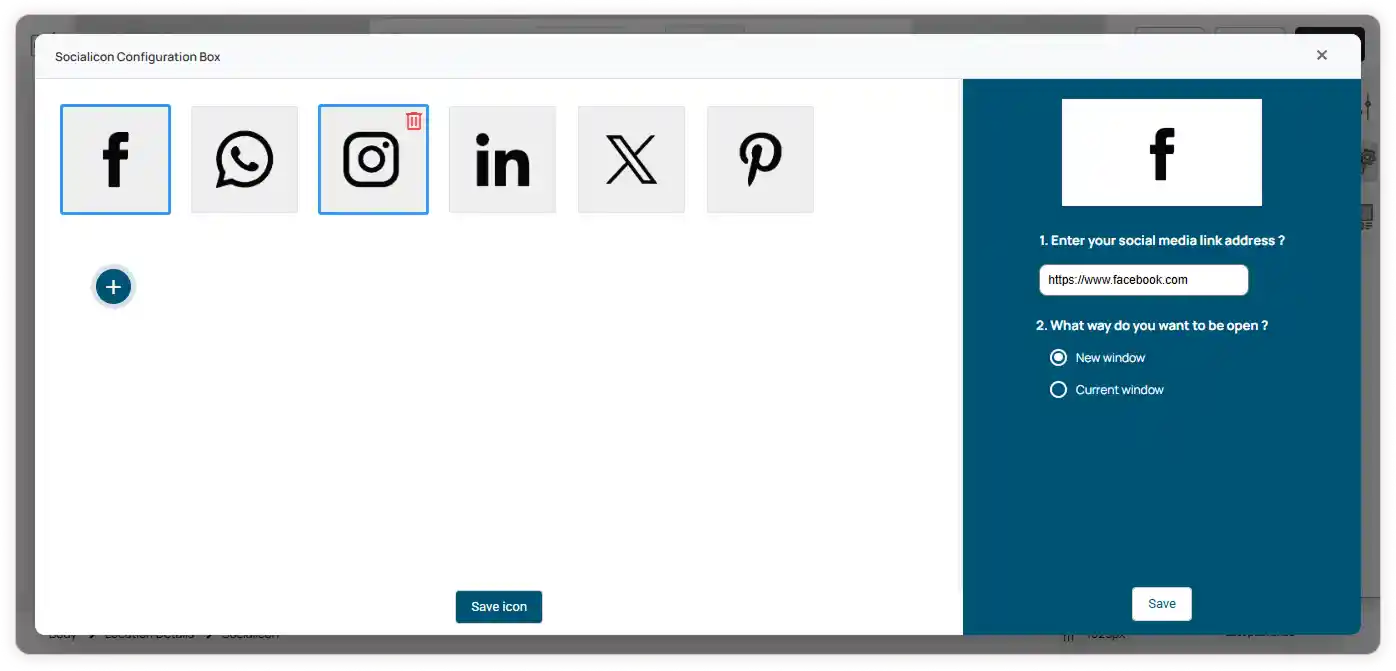
You can configure and customize your social media icons to link directly to your social profiles.
-
Click on the Configuration Menu in the right panel.
-
Select the specific social media icon you want to configure.
-
Enter the social media link and choose how you want the link to open (for example, in the same tab or a new tab).
-
Click Save to apply the changes.
-
To delete an icon, hover over it and click Delete icon.
To add a new icon, click Add Icon, upload the social media image, enter the link address, choose how it should open, and click Save Icon.
-
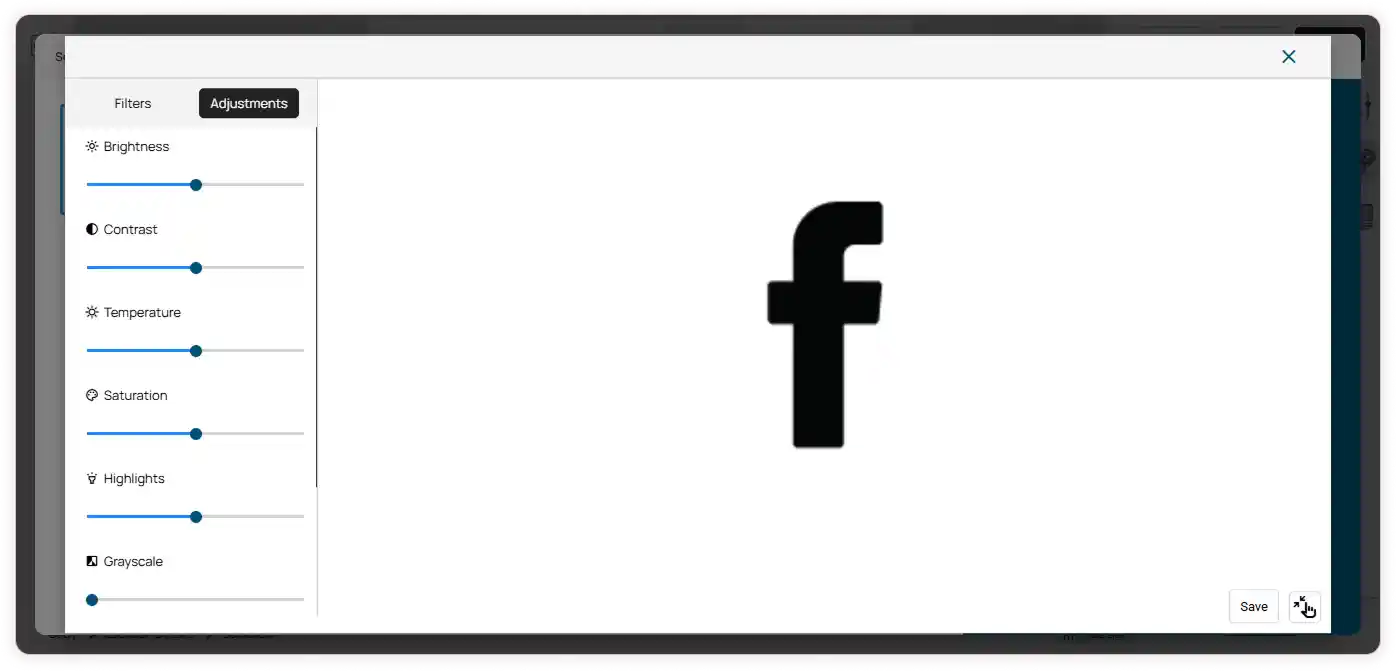
To edit an existing icon, click the Edit button. You can apply filters and adjustments to customize the appearance. After editing, click Save to confirm the changes.
-
Use the zoom in and zoom out options to view the icon closely while making edits.
Additional Options
-
Resize: Adjust the overall element size to match your layout.
-
Rotate: Use the rotate icon to change the orientation.
-
Delete: Click Delete Element to remove it from the page.