Accordion Element
An Accordion is a collapsible content container that lets you organize information into expandable sections.
In ZenBasket builder, you can easily add an Accordion to display FAQs, features, or any content that users don’t need to view all at once. They enhance the user experience by minimizing scrolling and presenting information in a clean, organized, and space-saving way.
Adding Accordion Element
To add an Accordion element to your site:
-
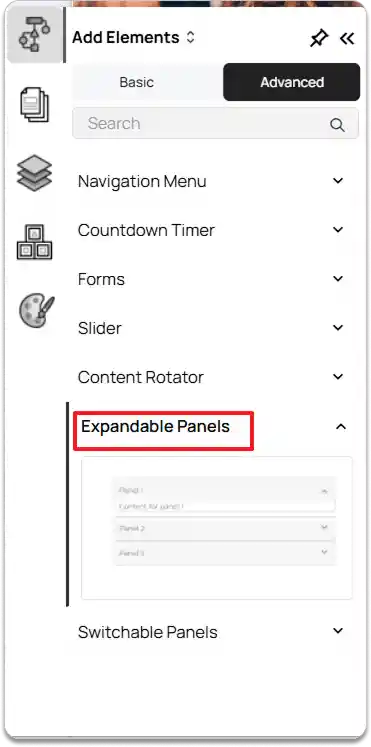
Go to the left tools panel and click Add Element.
-
Under Advanced elements, select** Expandable Panels**.
-
Click and drag the Accordion element into your desired section on the page.
-
Once added, you’ll see the default Accordion with multiple items that can be edited or customized.
By default, the Accordion element will stretch across the section. You can resize and reposition it anywhere within the section using drag and drop.
Customizing the Accordion Element
To customize the Accordion element:
-
Select the Accordion on your page.
-
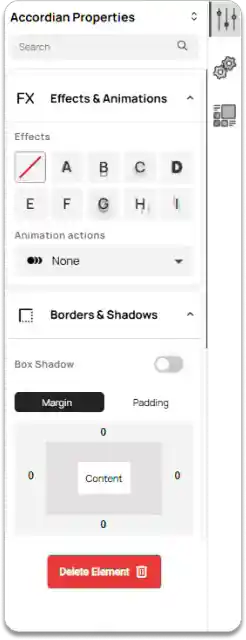
In the right tools panel, click on Properties.
-
Under Effects & Animations: Add animation effects and select an animation action to enhance interactivity.
-
Borders & Shadows: Enable Box Shadow if needed and adjust it. You can also set Margin and Padding to control the spacing around the Accordion layout.
To remove the Accordion element from your page, click the Delete Element button.
-
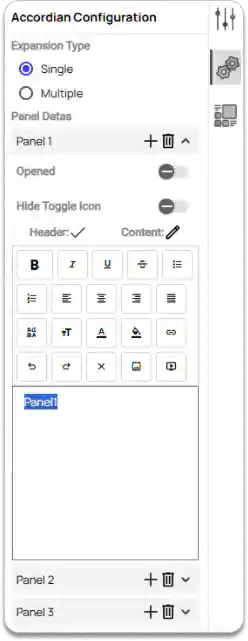
Click on the Configuration option in the right tools panel.
-
Under Expansion Type, choose how you want your Accordion to behave:
-
Single: Allows only one panel to stay open at a time.
-
Multiple: Lets users open more than one panel simultaneously.
-
-
Under Panel Datas, you can manage your Accordion items:
-
Add a new panel using the Add icon.
-
Delete a panel using the Delete icon next to it.
-
To edit a panel’s content, click the down arrow next to the Delete icon.
-
-
Use the toggles to:
-
Open/Close the panel by default.
-
Hide Toggle Icon if you don’t want the expand/collapse icon to appear.
-
-
You can edit the header and content for each panel using the text editor tools — add text, links, lists, or format the content as needed.