
Customizing Sections
Sections are the building blocks of your site pages. They help organize your content and create a clear, structured layout for visitors. Once you’ve added sections to your page, you can easily customize them to match your design and style preferences.
Customizing a Blank Section
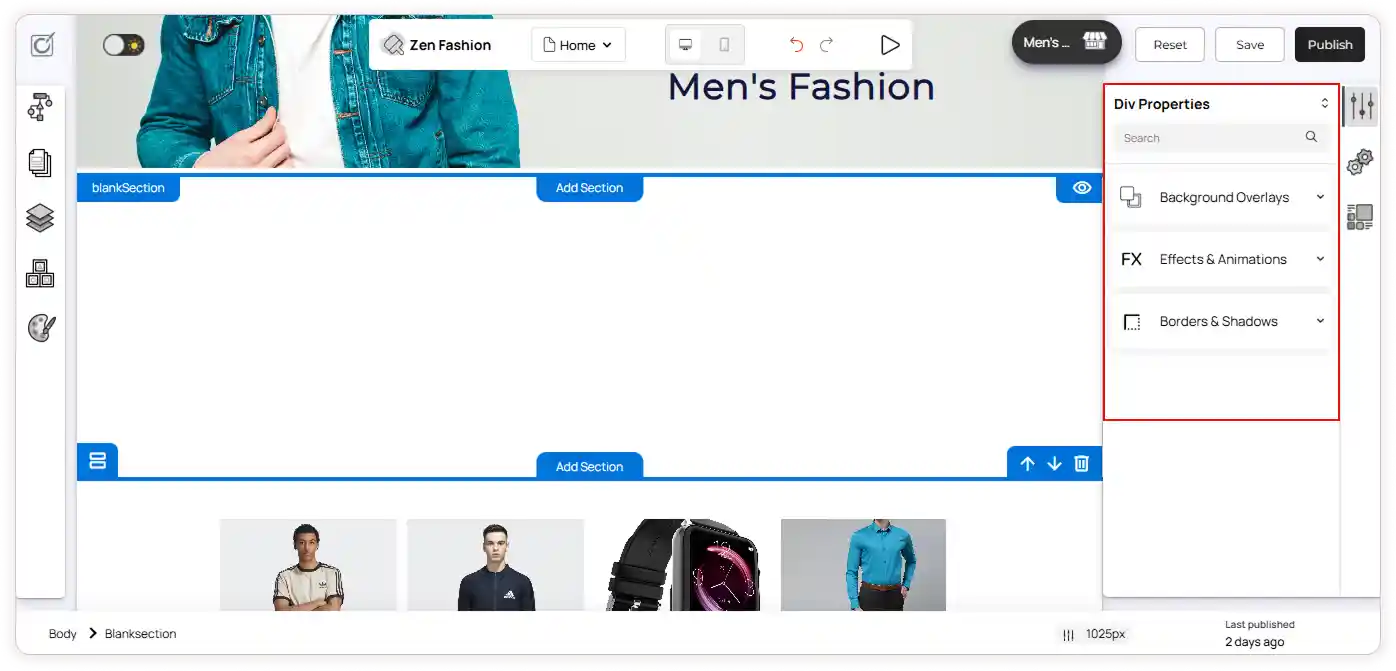
When you select a blank section, its container properties panel will appear on the right side of the editor.
In this panel, you’ll find options such as:
-
Background Overlay – Set a background color or upload an image, enable or disable blend modes, and adjust background size and position to achieve the desired look.
-
Effects & Animations – Choose animation actions from the dropdown to make your section more interactive. Preview the effect, and configure its delay and duration for smooth transitions.
-
Borders & Shadows – Customize box shadow, margin, padding, borders, and border radius to enhance your section’s overall appearance.
These options allow you to personalize the section’s visual style and layout to fit your website’s theme.
Adding Elements to a Section
You can enhance your section by adding elements such as images, text, buttons, or other components to display key information or decorative visuals.
To add elements:
-
Go to the left panel and click Add Elements.
-
You will see both Basic and Advanced elements listed.
-
Select the element you want to add (for example, an image).
-
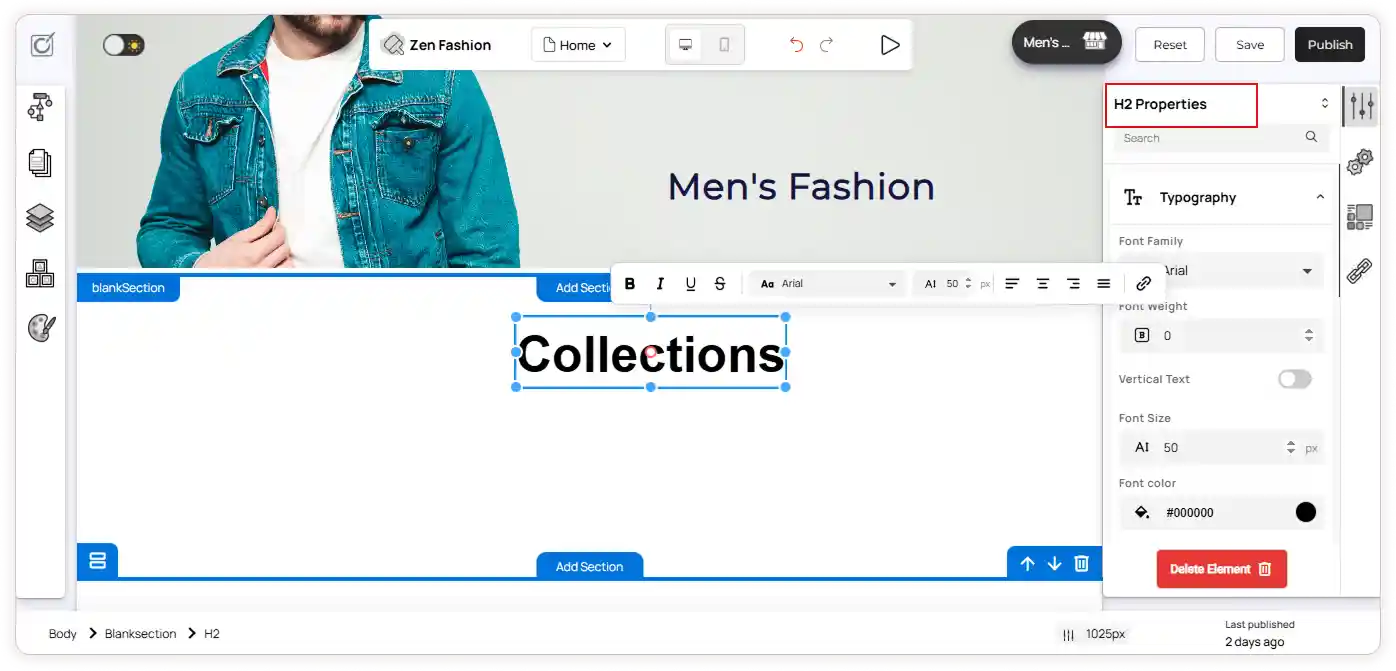
The selected element’s properties will appear in the right panel, where you can further customize it.
Adjusting the Size of a Section
You can adjust a section’s height to accommodate more content or to maintain a clean, minimal design.
To resize a section:
-
Click the section you want to adjust.
-
Drag the adjust section height handle at the bottom of the section to make it taller or shorter.