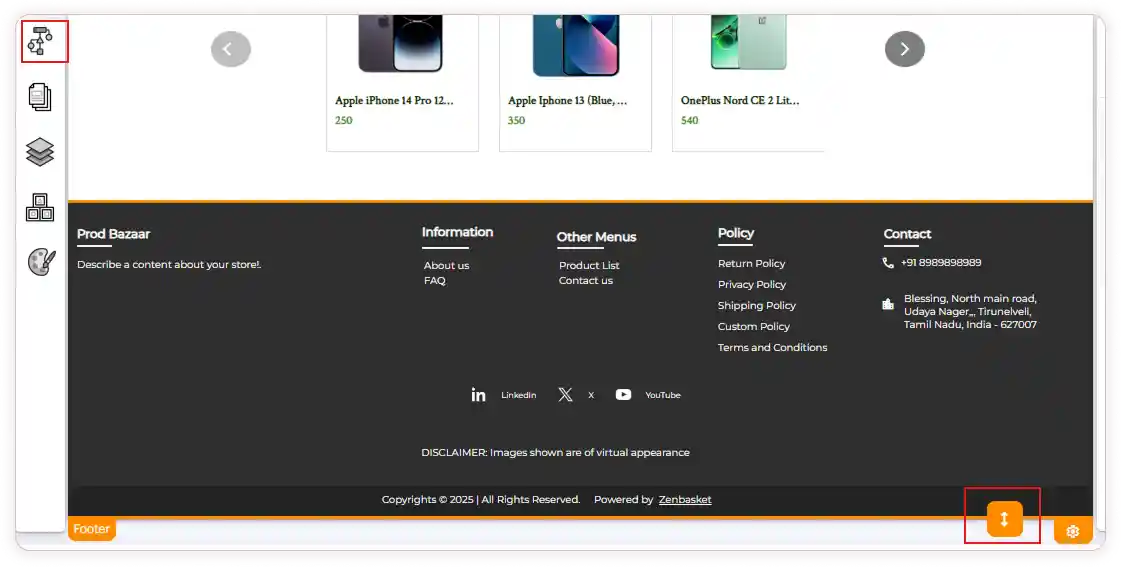
Footer Section – Settings Overview
The Footer section in ZenBasket Builder allows you to customize the layout, content, and appearance of the footer across your store.
How to Access Footer Settings
-
Hover over the Footer area on the page.
-
Click the Settings icon.
-
The Footer Properties panel will appear on the right side.
-
Use the Search bar to quickly locate any footer property.
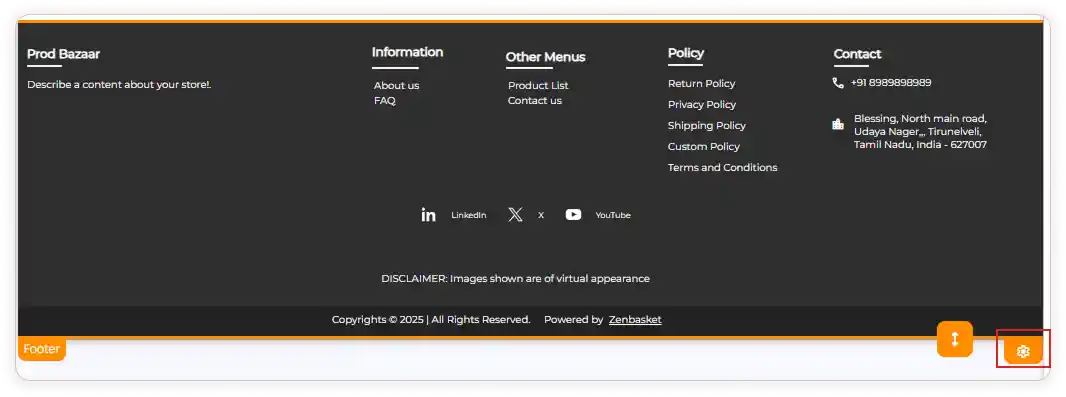
Settings Breakdown
1. General Settings
-
Select a Footer Variant from the dropdown.
-
Change the Background Color.
-
Enable or disable footer sections, including:
-
About
-
Information
-
Other Menus
-
Disclaimer
2. Heading Settings
-
Adjust the Heading Color for better visibility
-
Turn the Heading Underline on/off as needed
-
If enabled, choose the perfect Underline Color that aligns with your theme
3. Policy Settings
-
Show or hide the Policy Section entirely
-
Customize the Policy Text Color for better readability
4. Contact Settings
-
Toggle the Contact Section on/off
-
Enable or disable the Contact icon and adjust its color
-
Choose what contact details to show: Phone number,Address and Email
5. Social Media Settings
-
Display or hide your Social Media Section
-
Turn icons on/off and personalize icon color
-
Enable text labels and update their color to match your branding
6. Copyright Settings
-
Enable or disable the Copyright Section
-
Show or remove the Powered By label based on your preference
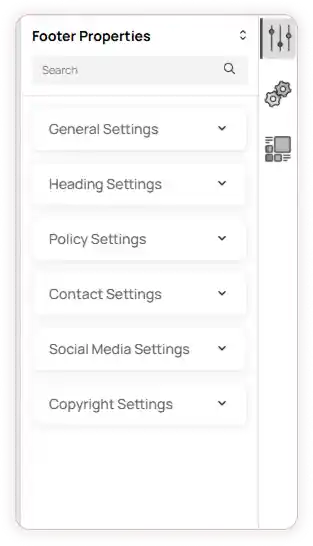
Quick Edit
The Quick Edit tab is available for all footer elements, allowing you to make fast updates without navigating through the full settings.
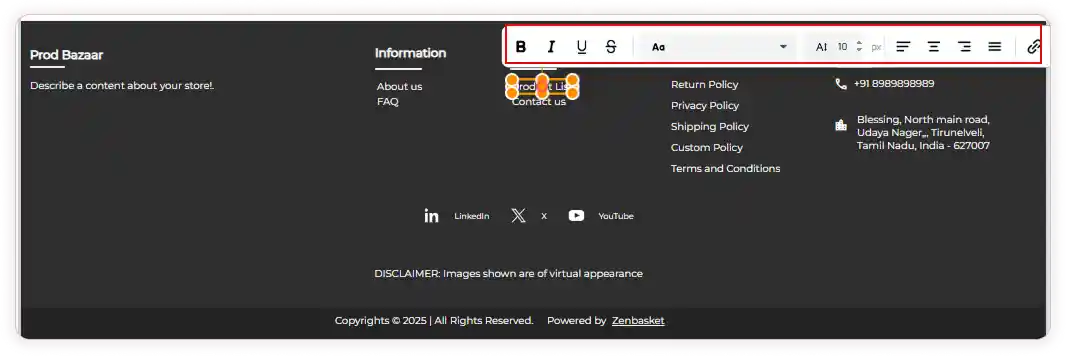
Resize Footer
You can resize the footer area using the Resize icon available in the footer section.
Edit Footer Elements
Each element can be edited individually using its specific properties.
Add New Footer Elements
If you wish to add new elements, simply drag and drop them from the Add Element option.